
SSO for Figma
Overview
Akku, developed by CloudNow Technologies, is a robust Identity & Access Management (IAM) solution designed to streamline user provisioning, access management, and activity monitoring throughout the user lifecycle. It offers administrators the tools to efficiently manage user privileges and ensure data security in cloud environments. With Akku, organizations can confidently embrace cloud technology while maintaining compliance with standards and regulations. Its comprehensive features enable seamless onboarding, secure authentication, a single point-of-access to all applications, enforcement of access policies, and monitoring of user activity to detect and respond to security threats effectively while enhancing the user experience significantly. By prioritizing data security, privacy, and compliance, Akku provides users with peace of mind while improving overall productivity. With its flexible and scalable architecture, Akku is well-equipped to meet the evolving needs of modern organizations in managing their identity and access requirements.
Introduction
Figma SAML SSO with Akku provides a secure and reliable method for authenticating users. To set it up, you'll need a Figma account, an Akku account, and the SAML SSO Integration feature enabled. First, configure your Akku instance by adding the Figma SAML SSO app and specifying the required fields. Then, grant Akku permission to access your Figma domain. Next, set up the SAML request URL and authentication URL in your Akku instance. Finally, test your integration to ensure seamless authentication for your users.
Configure Figma for SSO
The steps listed below provide instructions on adding the Figma application from the QuickLaunch App Store and configuring SAML SSO for the added application
Log in to Akku's Administration Console
Log in to Akku's Administration console with your tenant URL.
Navigate to App Management
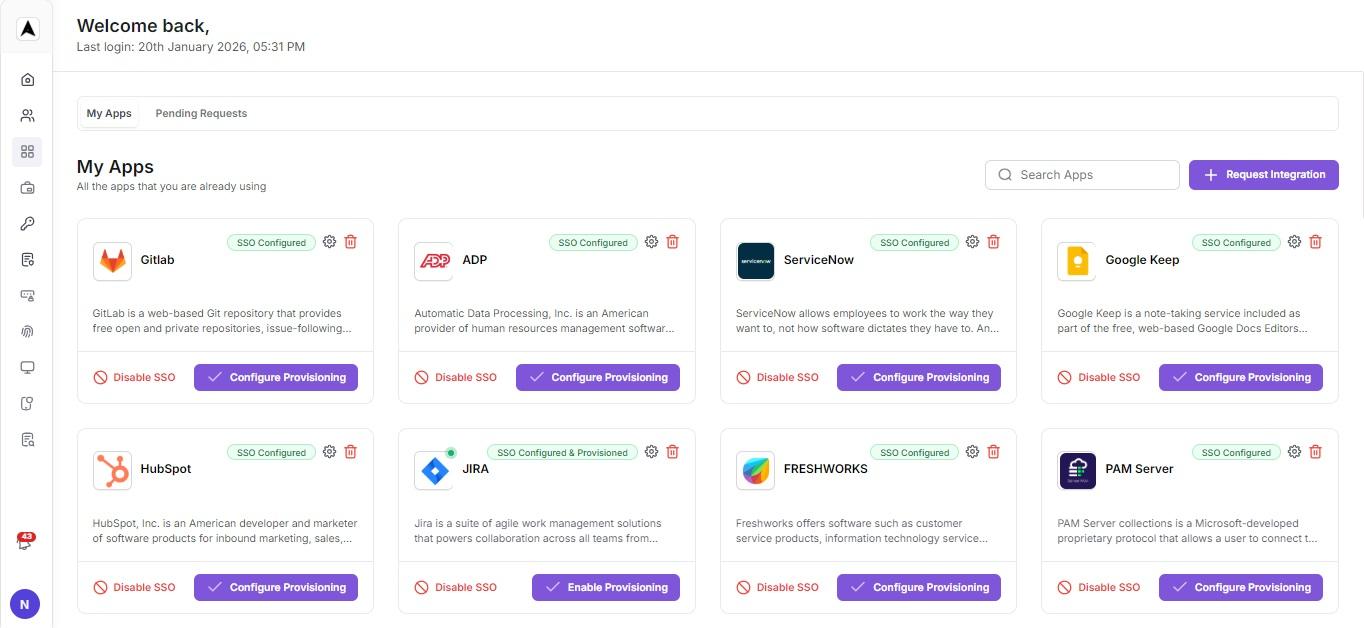
Navigate to App Management and search for Figma.
Configure Figma Application
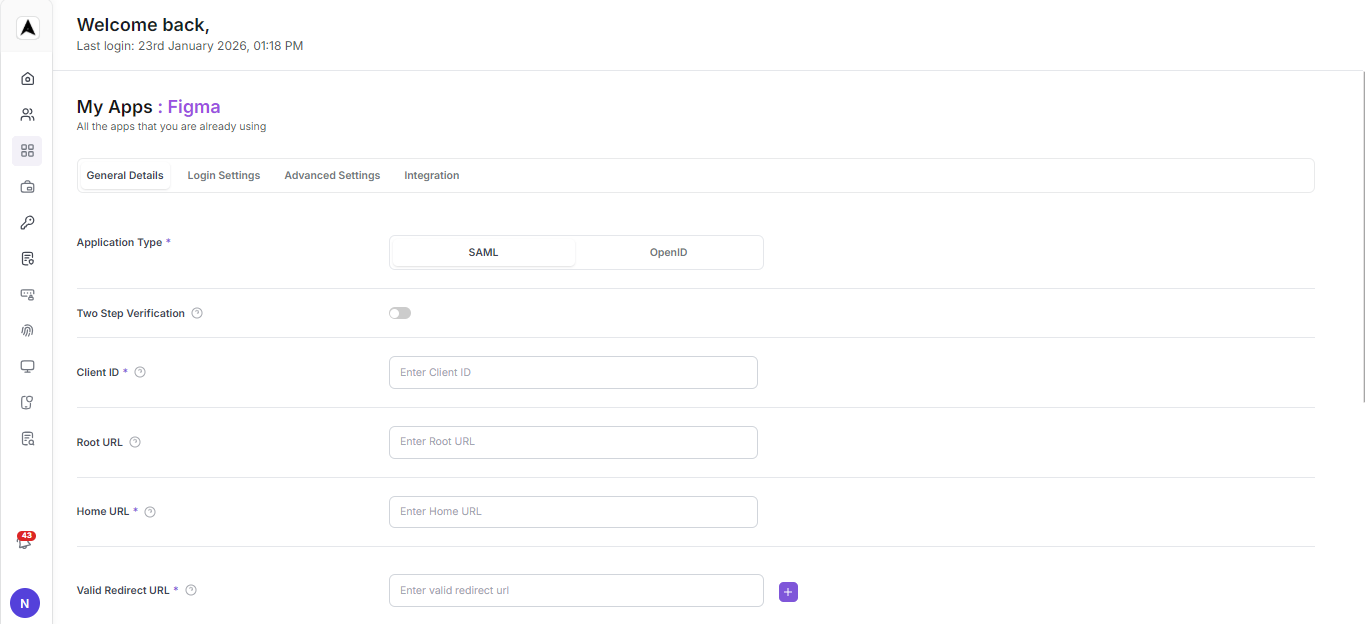
Click 'configure' on the Figma App and configure the necessary information based on the Figma metadata file.
Download AKKU Metadata
Navigate to the Integration tab and click on the SAML 2.0 Identity Provider Metadata to download the AKKU metadata and extract the Entity ID and the SSO target URL.
Configure Figma with SAML SSO
To configure Figma with SAML SSO:
- Login to the Figma Admin Console using your admin account.
- Navigate to Settings.
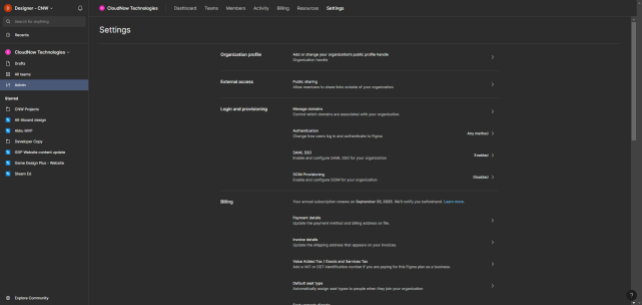
- Under the Login and Provisioning tab, you will find SAML SSO, which is disabled initially.
Get Figma Tenant and Entity Details
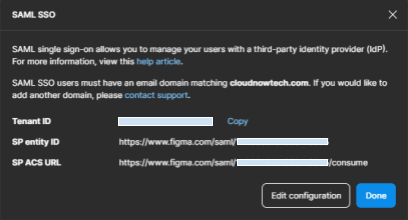
Once clicked the a pop-up will show the Tenant ID, Entity ID and ACS URL. In that Click on the Edit Configure to set up the AKKU IdP.
Configure Identity Provider
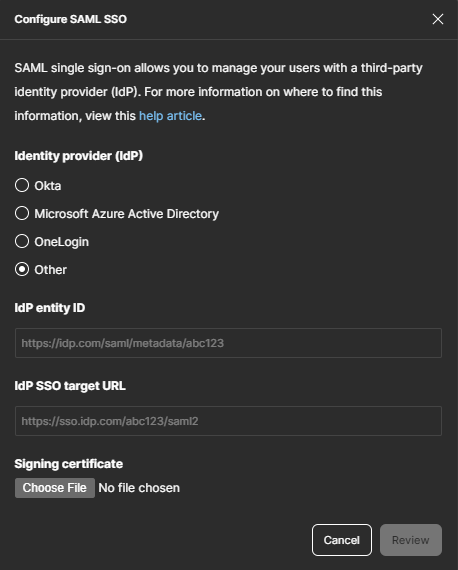
A pop-up will appear, where you need to select Other in the Identity Provider (IdP) section. Next, add the Entity ID and SSO Target URL retrieved from the AKKU metadata. Also, upload the certificate obtained from the metadata.
Review Configuration
Click Review to verify that all the changes made are valid.
Enable SAML Only Authentication (Optional)
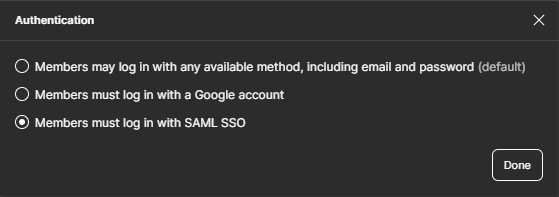
If Figma members must log in with SAML SSO. Then switch the Authentication to SAML only which is under the Login and provisioning tab in Settings.
Configure AKKU based on Figma Metadata
Configure Akku with the metadata from Figma
Log in to Akku's Administration Console
Log in to Akku's Administration console with your tenant URL.
Navigate to App Management
Navigate to App Management and search for Figma.
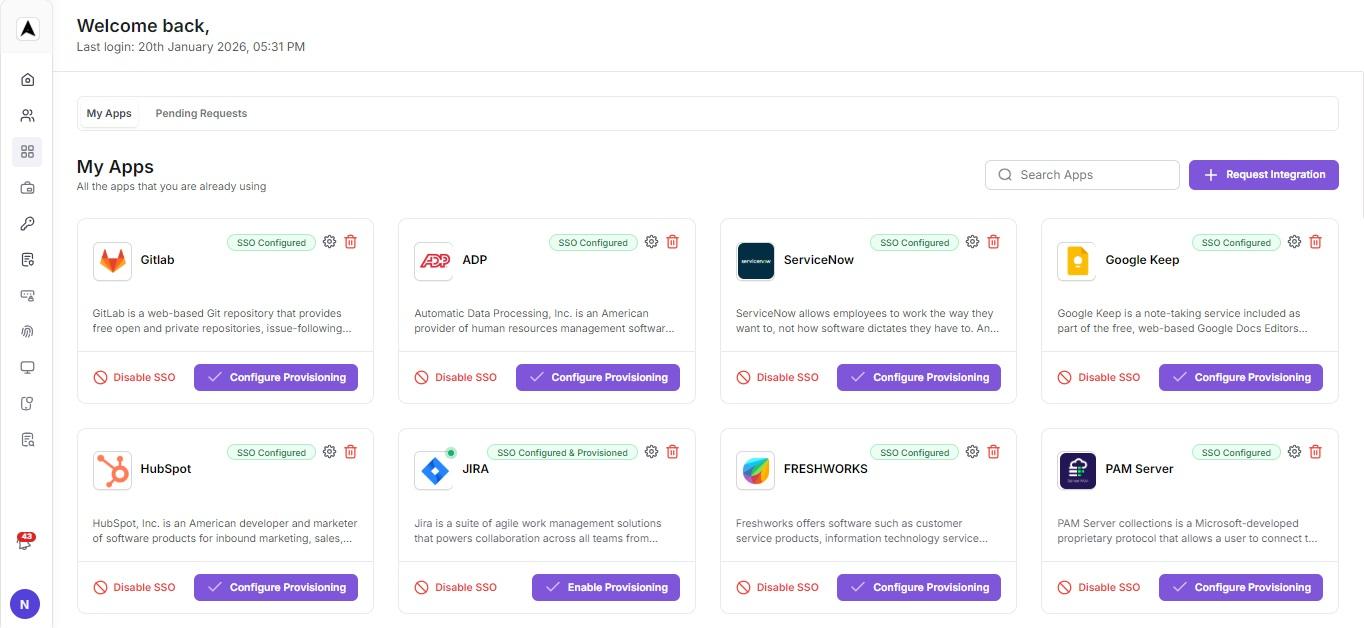
Configure SSO Settings
Click 'Setup/Configure SSO' on the Figma App and configure the necessary information based on the Figma metadata file.
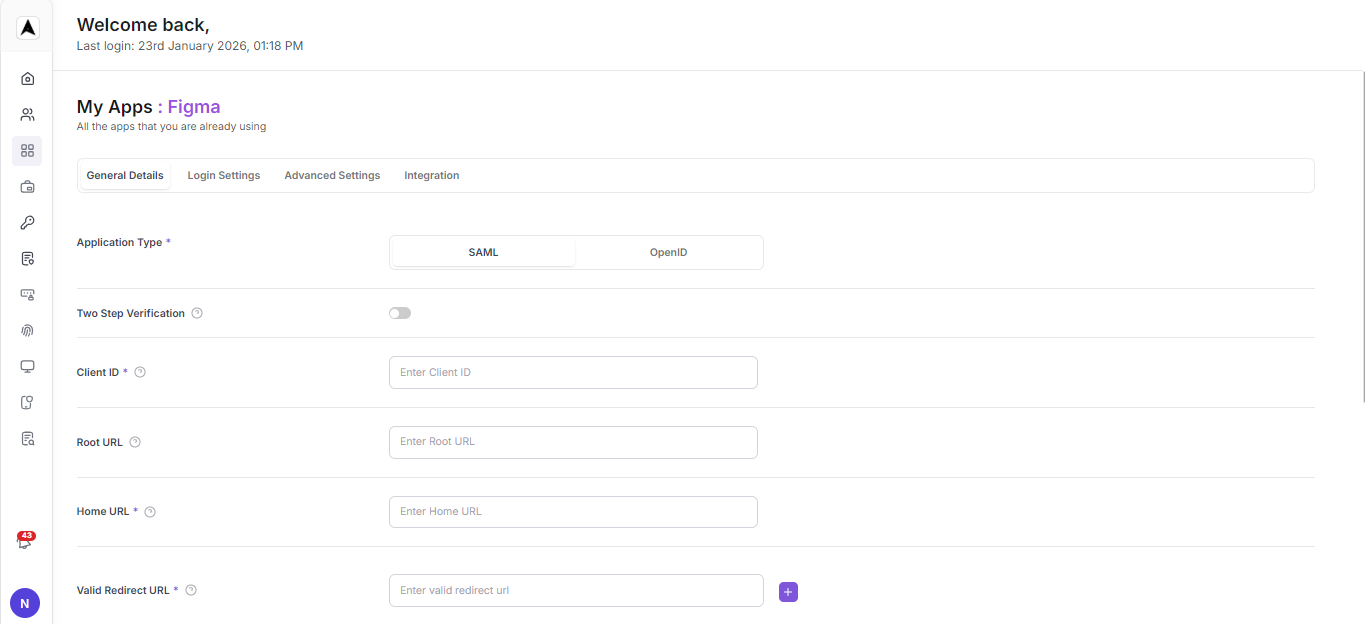
Get the SP EntityID and ACS URL
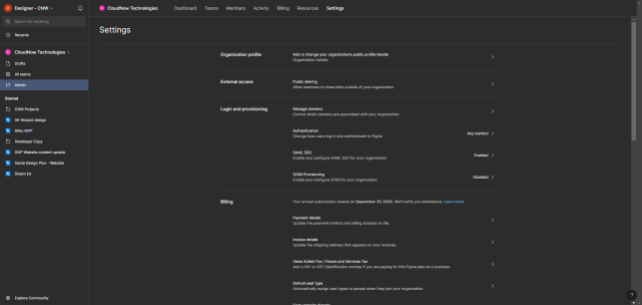
To get the required URLs from Figma:
- Login to the Figma Admin Console.
- Navigate to the Settings.
- Under the Login and Provisioning tab, you will find SAML SSO, which is disabled. Click to enable it.
- Once clicked the a pop-up will show the Tenant ID, Entity ID and ACS URL. Copy the required URL's.
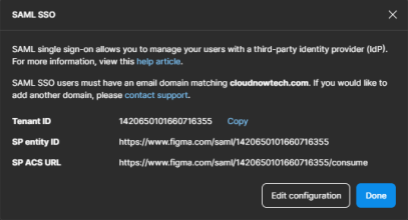
Fill in the Entity ID and ACS URL
Fill in the Entity ID and ACS URL in the configuration tab using the URLs copied from Figma.
Client ID
https://www.figma.com/saml/TenentID

Home URL
https://www.figma.com/login?form_state=saml_start

Valid redirect URL
https://www.figma.com/saml/TenentID/consume

Assertion Consumer Service POST Binding URL
https://www.figma.com/saml/TenentID/consume

Assertion Consumer Service Redirect Binding URL
https://www.figma.com/saml/TenentID/consumeSave Configuration and Assign Users
Save the Configuration and assign the application to the users.